Getting started
Use Zero Start in Zero World
Six steps from a new account to your first reply from a Zero Start Max model. It takes about five minutes.
Before you start
- A Zero World account, signed in on the desktop app or in the browser.
- An invitation code from your pool admin, or ask the admin to add you to their pool directly.
The screenshots use Zero World in English. To switch, open Settings → General and choose English.
Open Models and usage
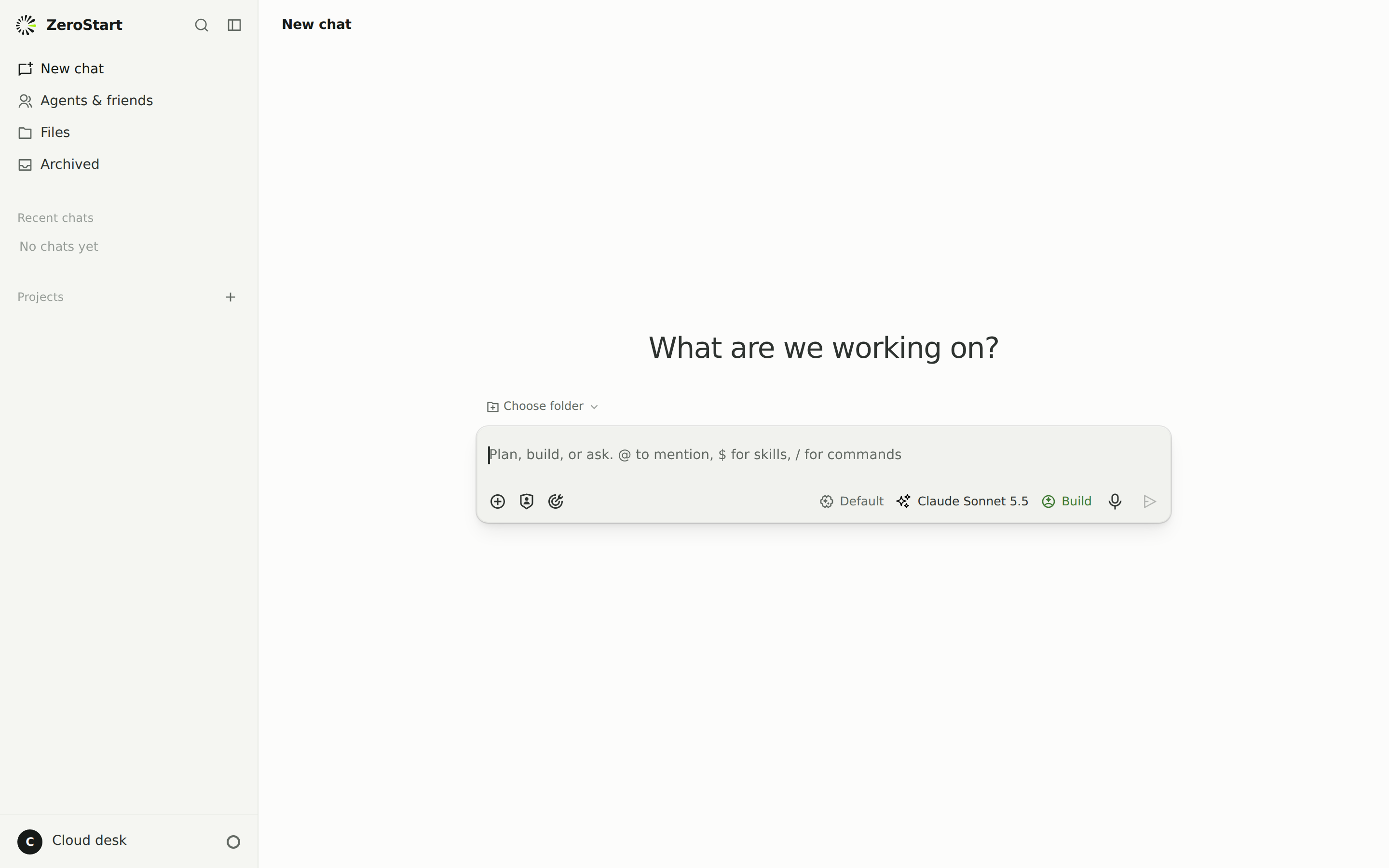
In Zero World, click your workspace name at the bottom left to open Settings, then choose Models and usage in the left column.
Shortcut: the small ring next to the workspace name opens the same page.
Link Zero Start
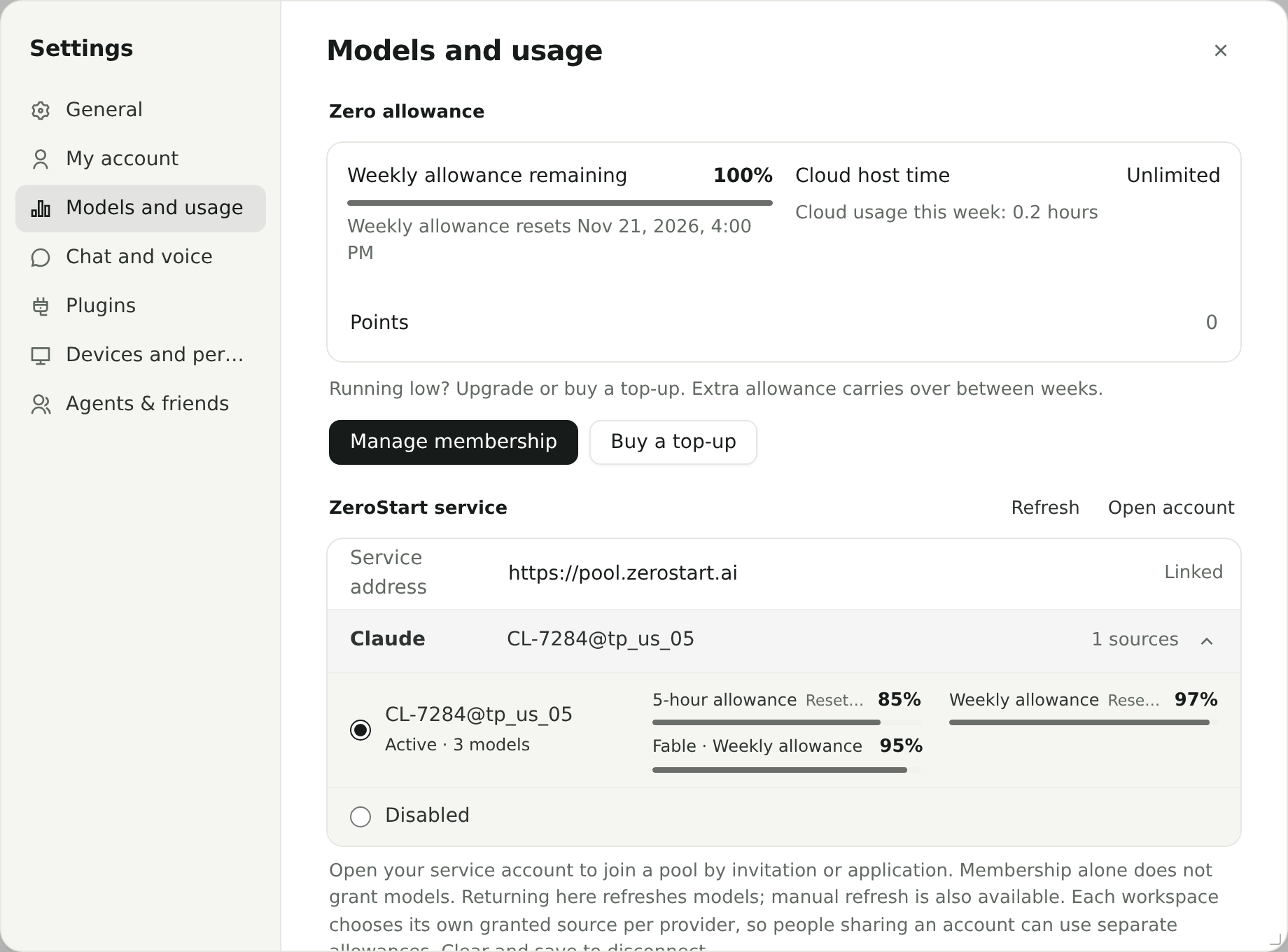
Find the ZeroStart service section.
- If Service address already shows
https://pool.zerostart.aiand Linked, your account is linked. Go to step 3. - Otherwise enter
https://pool.zerostart.ai, tick I trust this service and click Bind and continue.
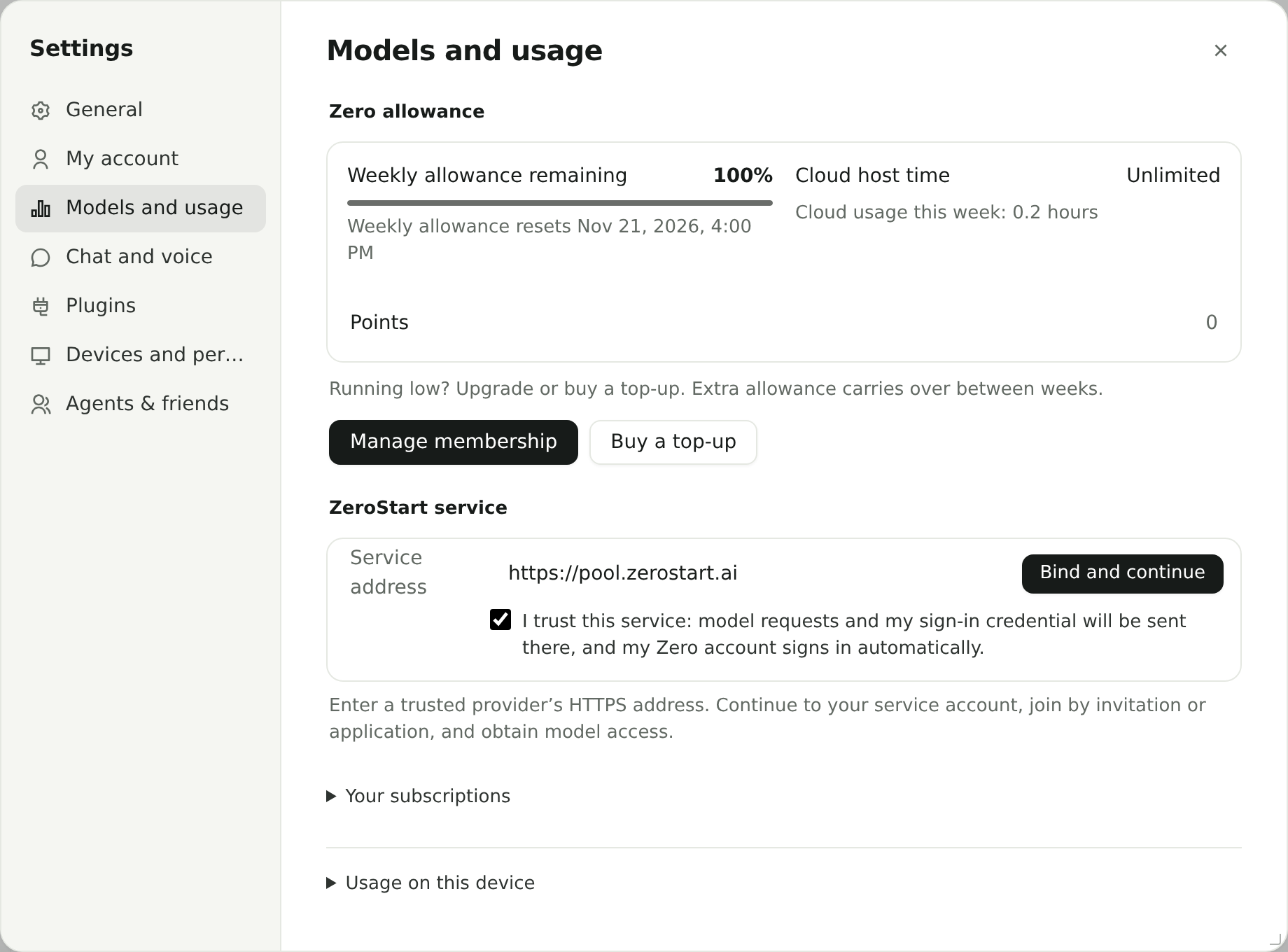
Zero World then opens Zero Start in a new window and signs you in with your Zero World account. You do not need a new password.
Join a pool
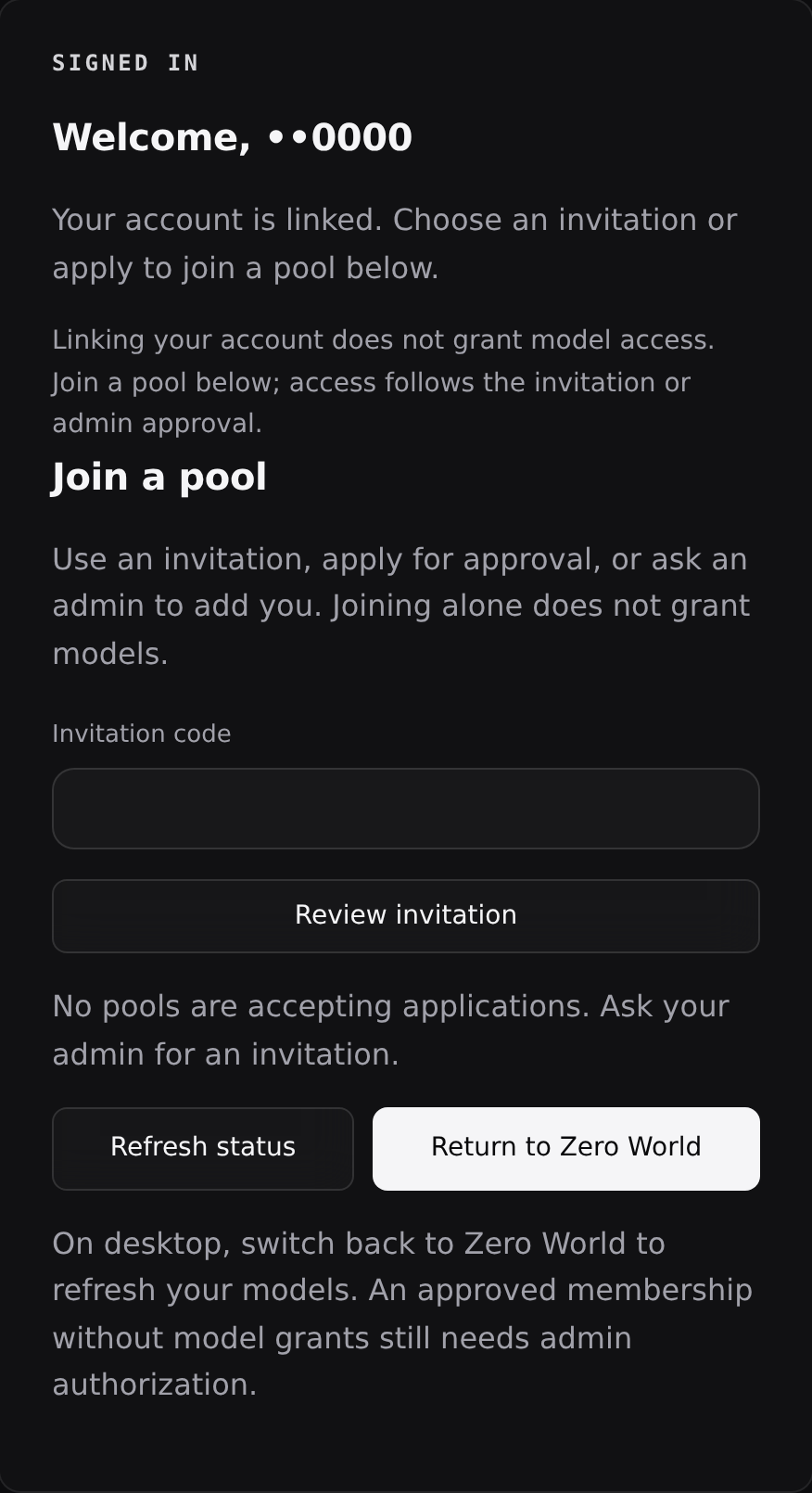
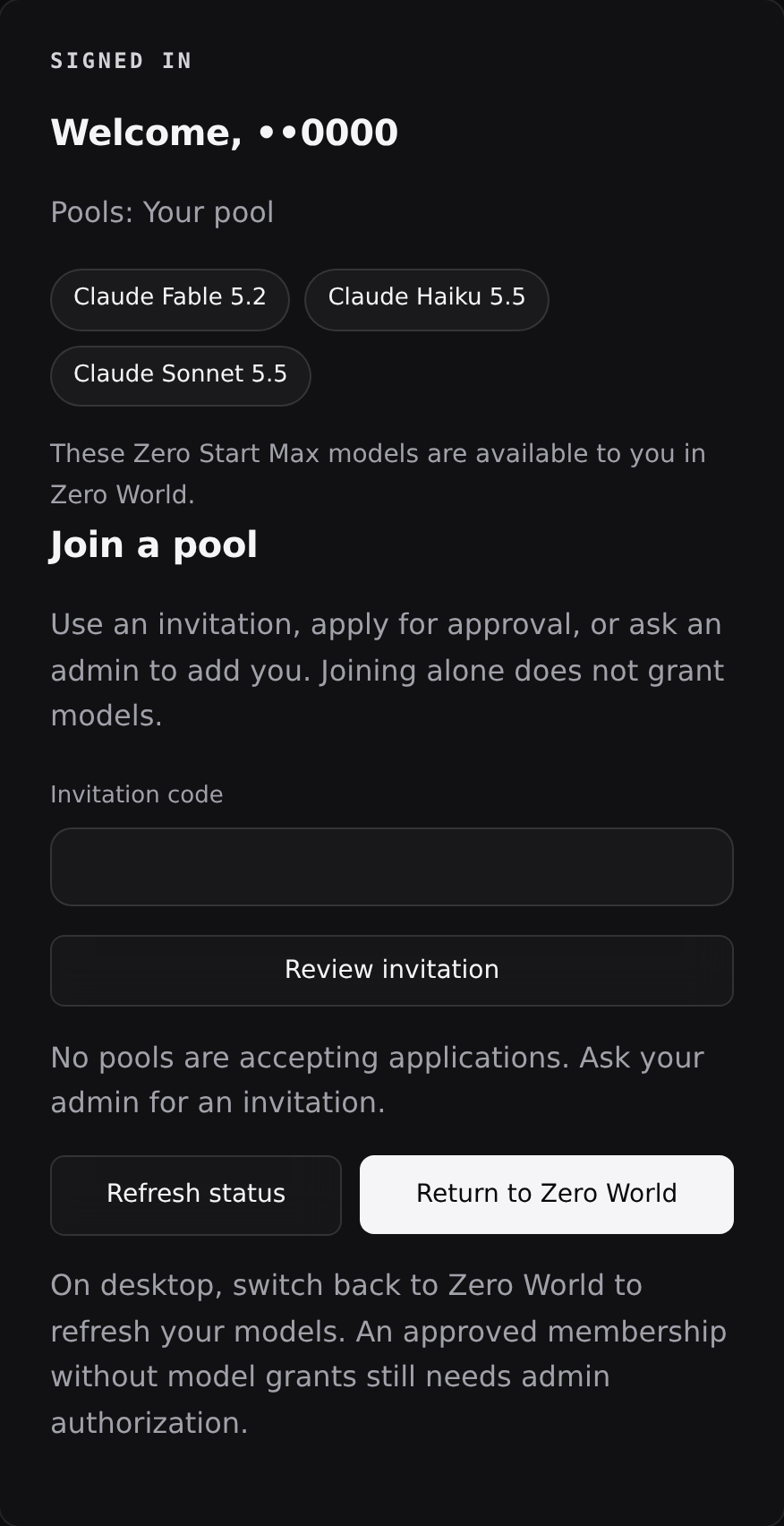
On Zero Start, enter your invitation code under Join a pool, click Review invitation, check the pool and models, then click Confirm and join.
If your admin added you directly, you can skip this step. Once access is granted, your account card lists the models available to you.
Click Return to Zero World when you are done. If the Zero Start window has closed, go back to Models and usage and click Open account to open it again.
Joining a pool does not grant models by itself. Model access follows the invitation or your admin’s approval.
Check your sources
Back in Models and usage, Zero World refreshes on its own. You can also click Refresh. The section now shows Linked and one row per provider: Claude, Codex or OpenCode Go.
Click a row to expand it. You will see the source in use with its 5‑hour and weekly allowance. If you have more than one source, choose one here. Disabled turns that provider off for this workspace.
Pick a Zero Start Max model
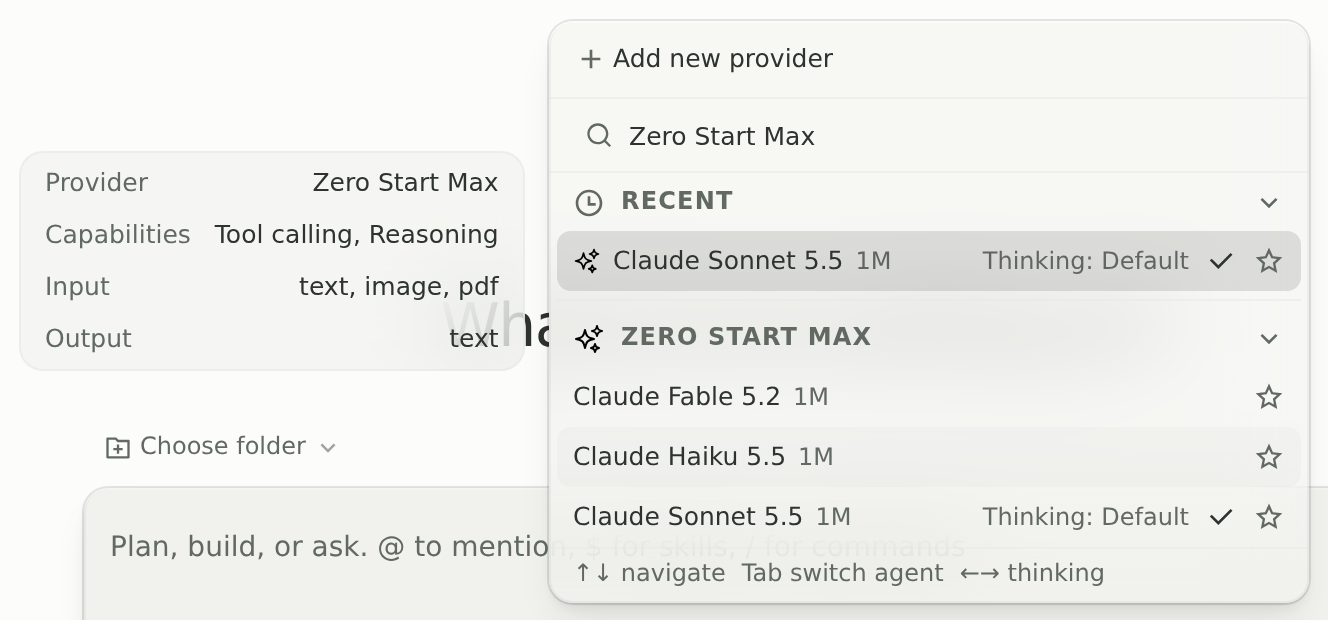
Start a new chat and click the model name in the message box. The picker shows a ZERO START MAX group with every model granted to you.
Choose one, for example Claude Sonnet 5.5. Type “Zero Start Max” into Search models to show only this group.
Tip: click the star to add a model to Favorites so it stays at the top.
Start chatting
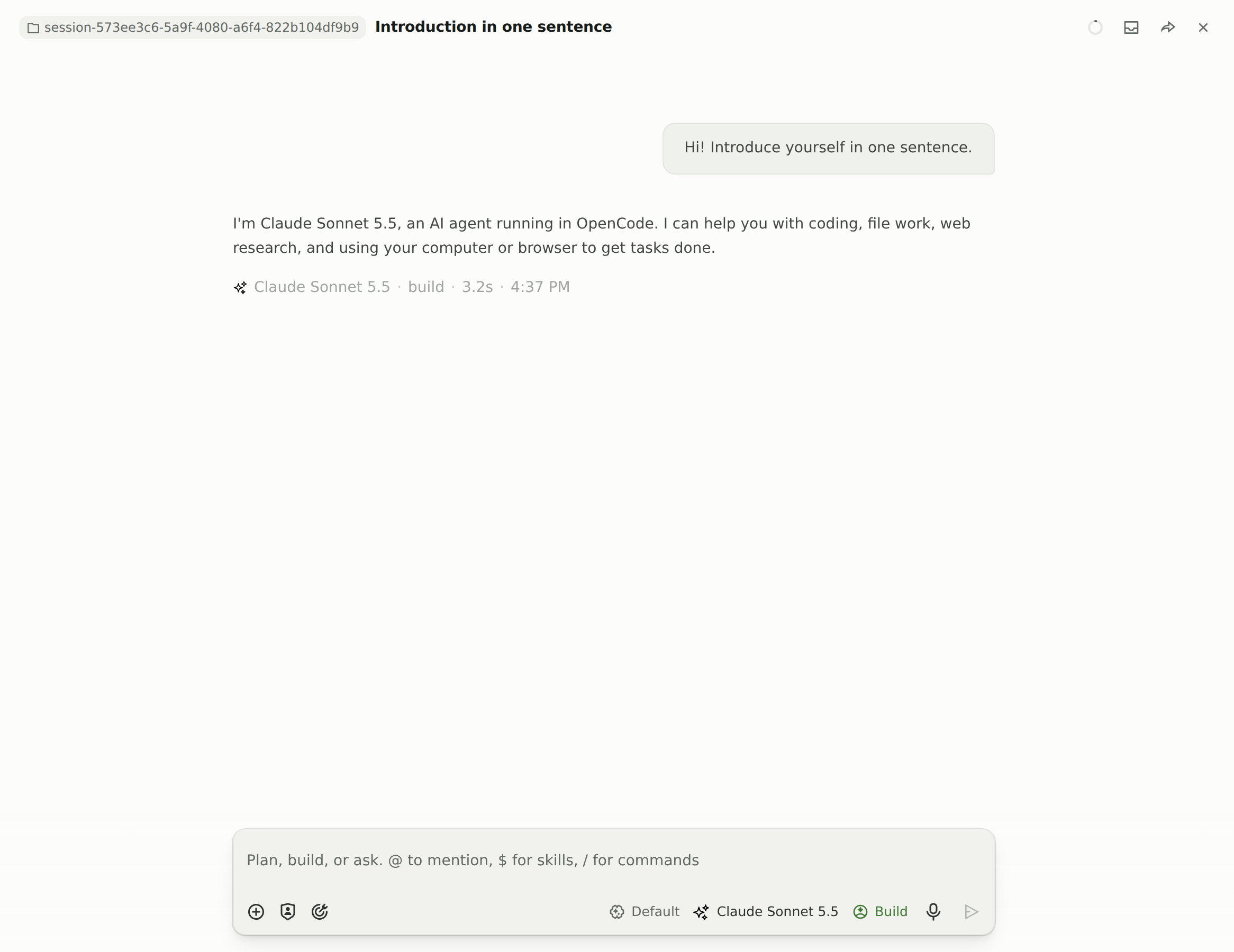
Send a message. The line under each reply shows the model that answered, so you can confirm it came from Zero Start Max.
Your usage counts against your pool’s allowance. You can check it any time in Models and usage.
Troubleshooting
- The ZERO START MAX group is missing
- Your models have not been granted yet, or the list has not refreshed. In Models and usage, click Refresh. If it is still missing, ask your pool admin to check your model access.
- “No authorized resources yet”
- You are linked but not yet in a pool with model access. Repeat step 3 or contact your admin.
- The Zero Start window did not open
- Your browser blocked the pop-up. Allow pop-ups for Zero World, then click Open account.
- A request fails or the allowance is used up
- Expand the provider row in Models and usage to check the allowance and when it resets. If your pool has more than one source, you can switch to another.
- I want to stop using Zero Start
- Clear the service address and save. This unlinks your account.